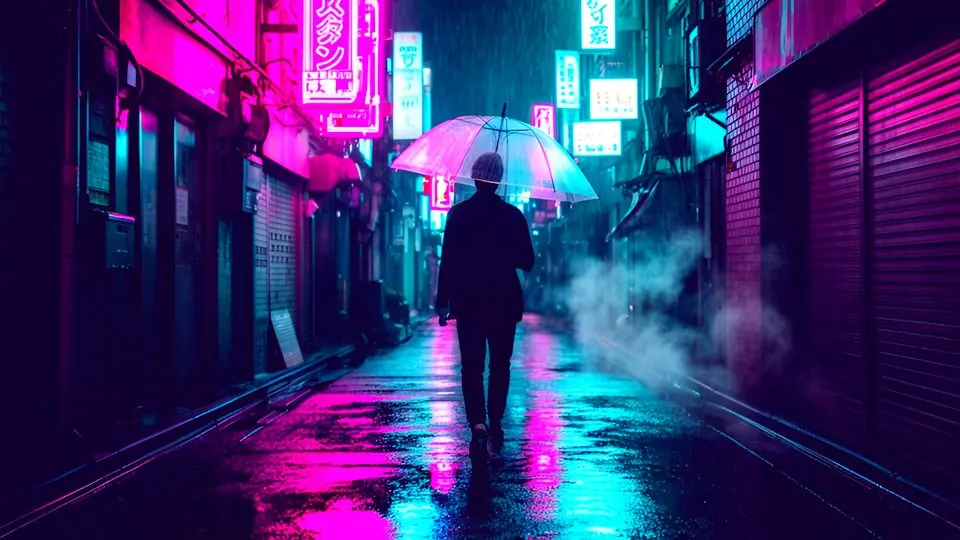
 Before · AI clipAfter · Neo Tokyo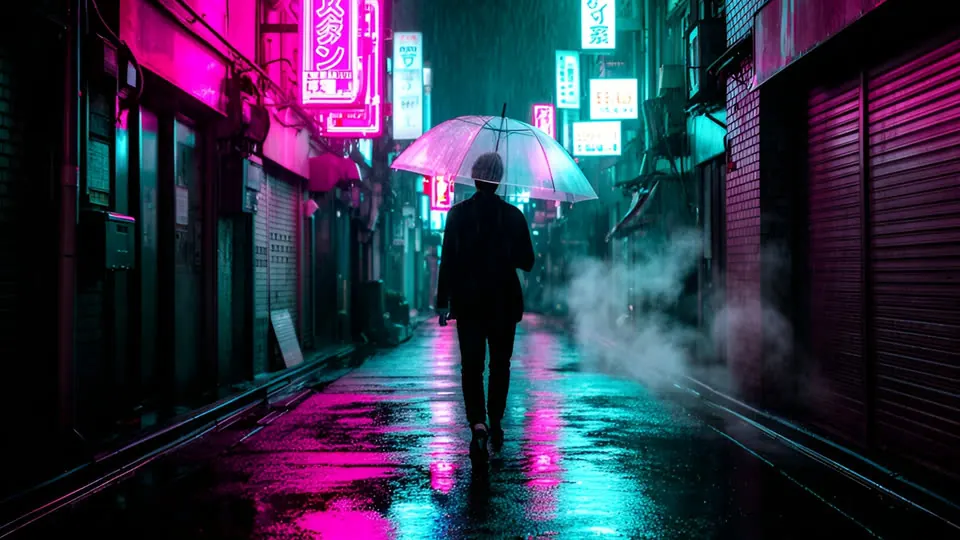
Drag the frame to compare. The preview applies the shipped .cube file live in your browser — what you see is what you download.
Prompt suffix
Append to your Kling, Veo, Seedance or Sora prompt so the clip is generated closer to this look.
, cyberpunk magenta and cyan, everything else pushed out, stylised colour palette, painterly anime-inspired lighting, bold graphic shapes, soft bloom, hand-crafted look, consistent art direction
Install
- 01Select your clip (or an adjustment layer above several clips) and open Window → Lumetri Color.
- 02Under Creative → Look, choose Browse… and pick a file from “01 Rec709 - AI footage”.
- 03Lower Creative → Intensity to 50–70 if the look is too strong for your clip. The “Soft 60” folder is the same look pre-mixed at 60%.
- 04Shot in log on a real camera? Put the matching file from “03 Log” in Basic Correction → Input LUT instead, and leave Creative empty.
Related
All items →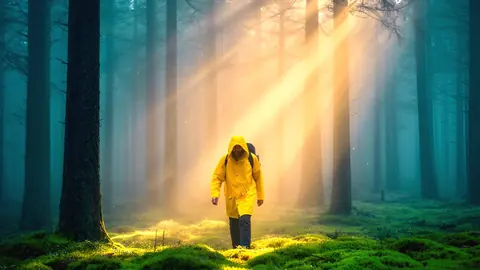
 Before
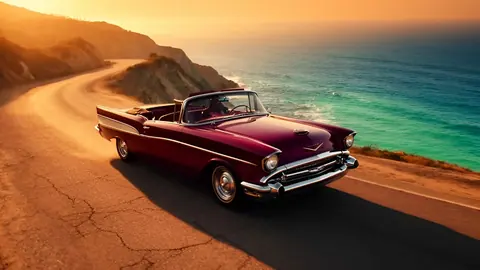
Meadow Cel
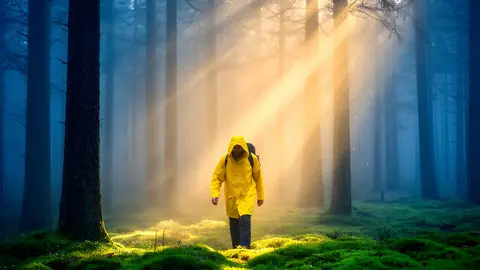
Anime & stylisedHand-painted summer meadow: soft cyan skies and lush yellow-greens.

 Before
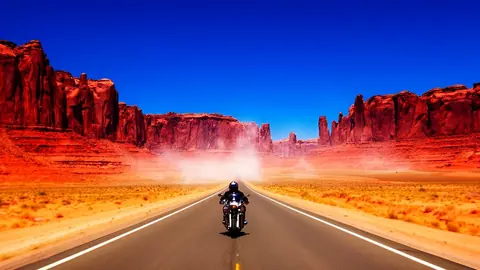
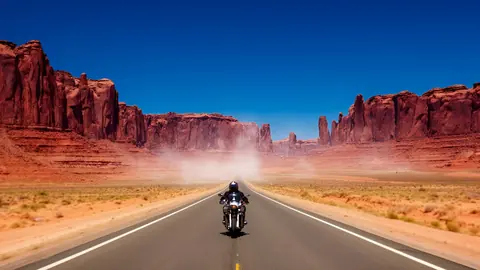
Pastel Dream
Anime & stylisedCandy pastels and milky whites.
 Before
Comic Pop
Anime & stylisedPrimary-colour graphic novel: hard contrast, inked blacks.
 Before
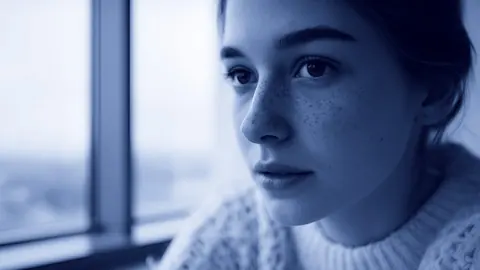
Duotone Ink
Anime & stylisedBlue-ink duotone for title cards and music videos.